Track effort across every checklist - before capacity becomes a crisis
Nobody knows if the team can reach Day 1 on time until the final weeks force the answer. By then it is too late to add hands.
CxPlanner's Checklist Workload sets expected hours per checklist type, tracks planned versus actual as work gets done, and rolls it all up into live capacity forecasting - so resourcing is a decision, not a guess.
Book a demo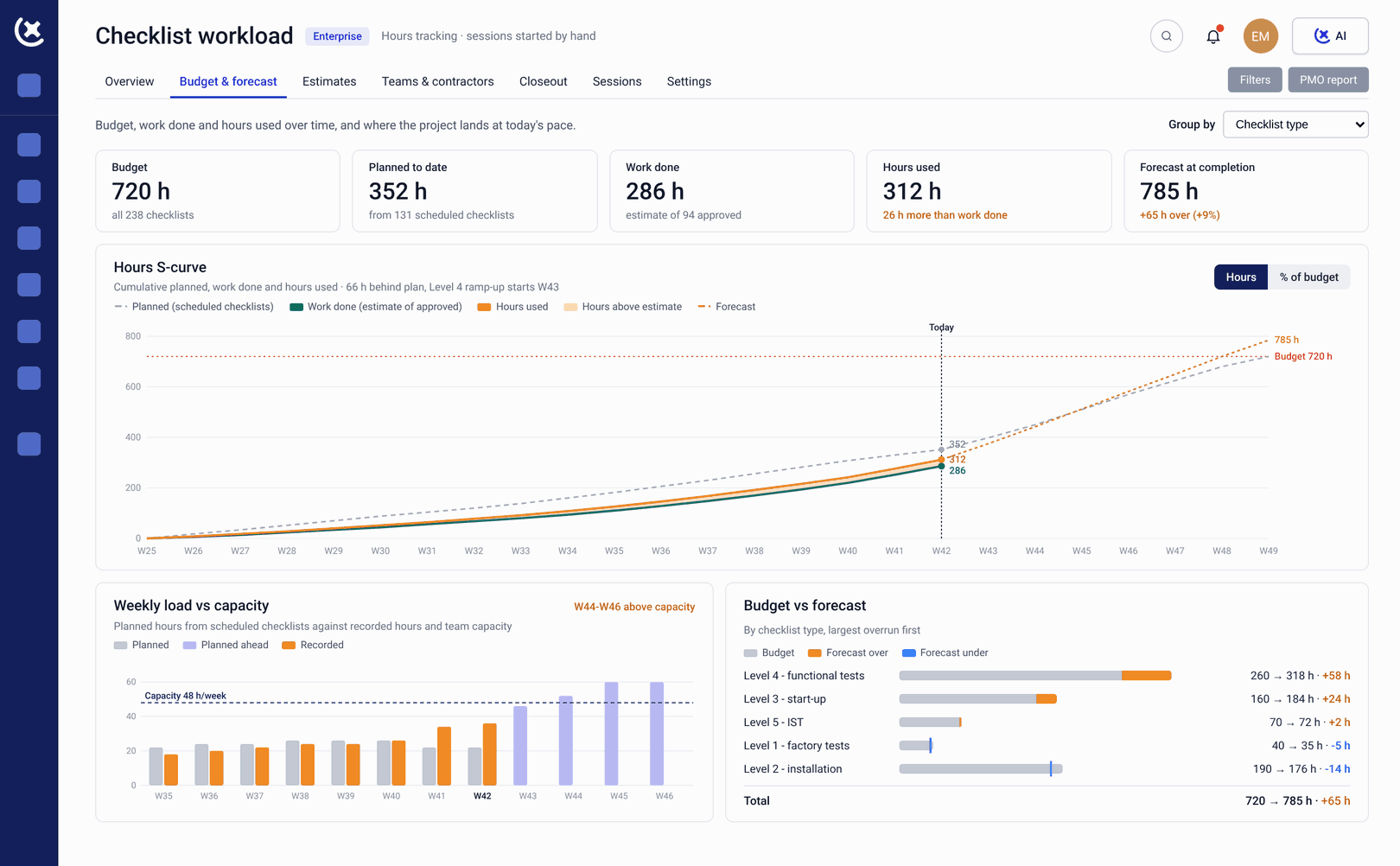
Effort planning lives in someone's head, not in the project
Every project runs on an effort estimate. Almost none of them track it.
Expected hours per checklist are guessed, not set.
Someone quoted an hour figure at tender. Nobody entered it anywhere the team can see it again. By execution, the number only exists in an old spreadsheet or a memory.
Planned versus actual only gets checked at closeout.
Without a live view of hours spent against hours budgeted, drift is invisible until the final report - at the exact point where there is no time left to correct it.
Capacity questions get answered too late.
Whether there are enough people to close out remaining checklists on schedule should be answered weeks out, not discovered in the last sprint before handover.
Set expected hours once. Track everything after that automatically.
Checklist Workload assigns expected work hours to each checklist type in the Asset module. From that point, every checklist created from the type carries its budgeted effort - no manual entry per checklist, no separate tracker.
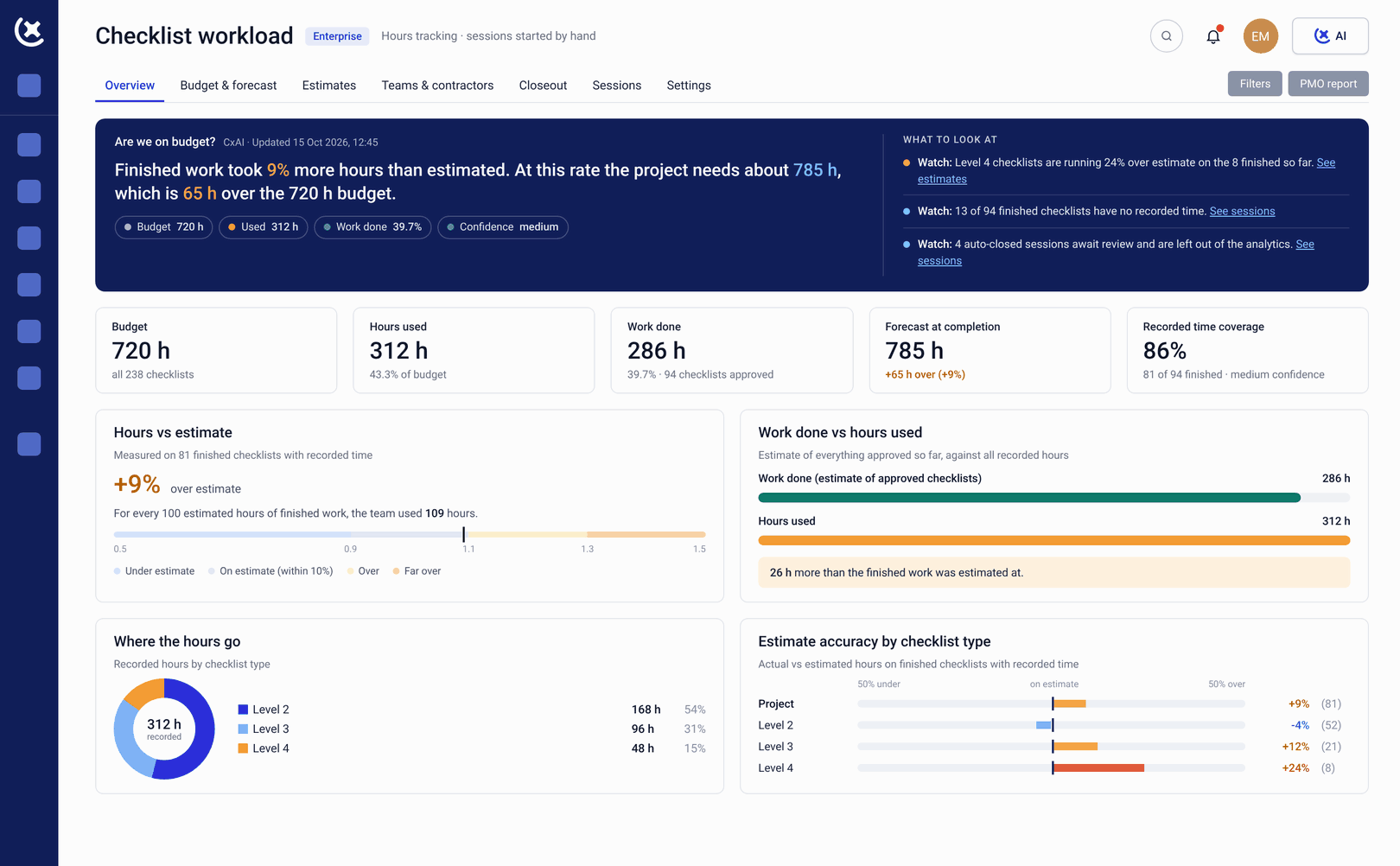
The result is a live effort programme, not a tender-stage estimate that gets filed and forgotten. See the full operational readiness planning overview for how effort budgeting fits the rest of the programme.
Here is how it works
Set expected hours per checklist type
A Manager enters the Work Hours field once, in the checklist type's Advanced settings. Every checklist of that type inherits the budget.
Hours roll up as checklists are created
No re-entry, no second system. Budgeted effort follows the checklist type into every asset it is applied to.
Planned versus actual tracked live
Actual hours logged against checklists are compared to the budget continuously, not reconstructed at the end of the project.
Capacity visible across the whole team
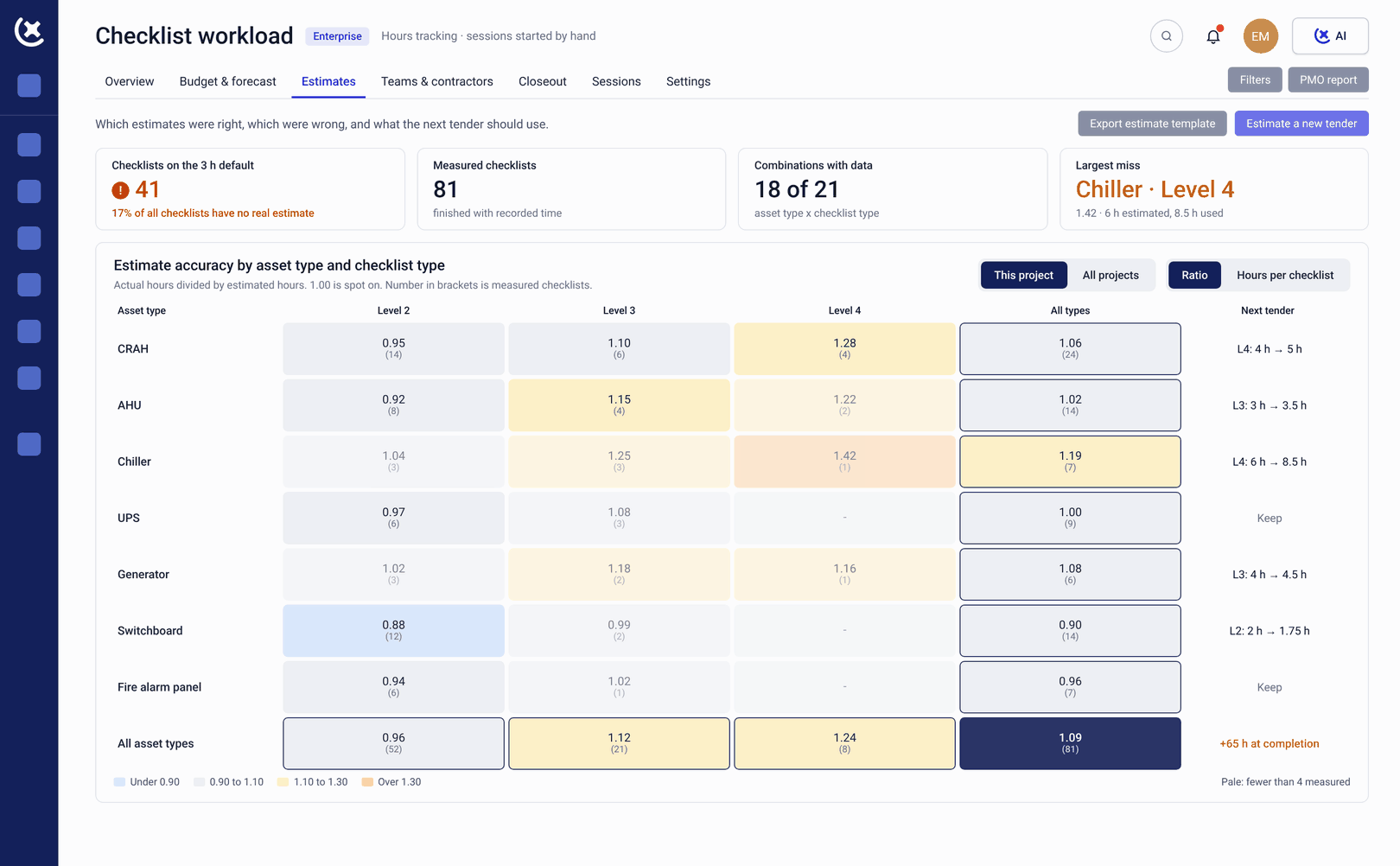
Workload rolls up by category, company, responsible person, or user group - so a Manager sees where the remaining effort actually sits.
What Checklist Workload covers
From setting the budget to forecasting the finish - one view, live throughout the project.
One field, set once, applied everywhere
The Work Hours field sits in Types: Assets - pencil icon - Edit Checklist Type - Advanced. Enter a value and every checklist built from that type carries the same expected effort, with no per-checklist setup.
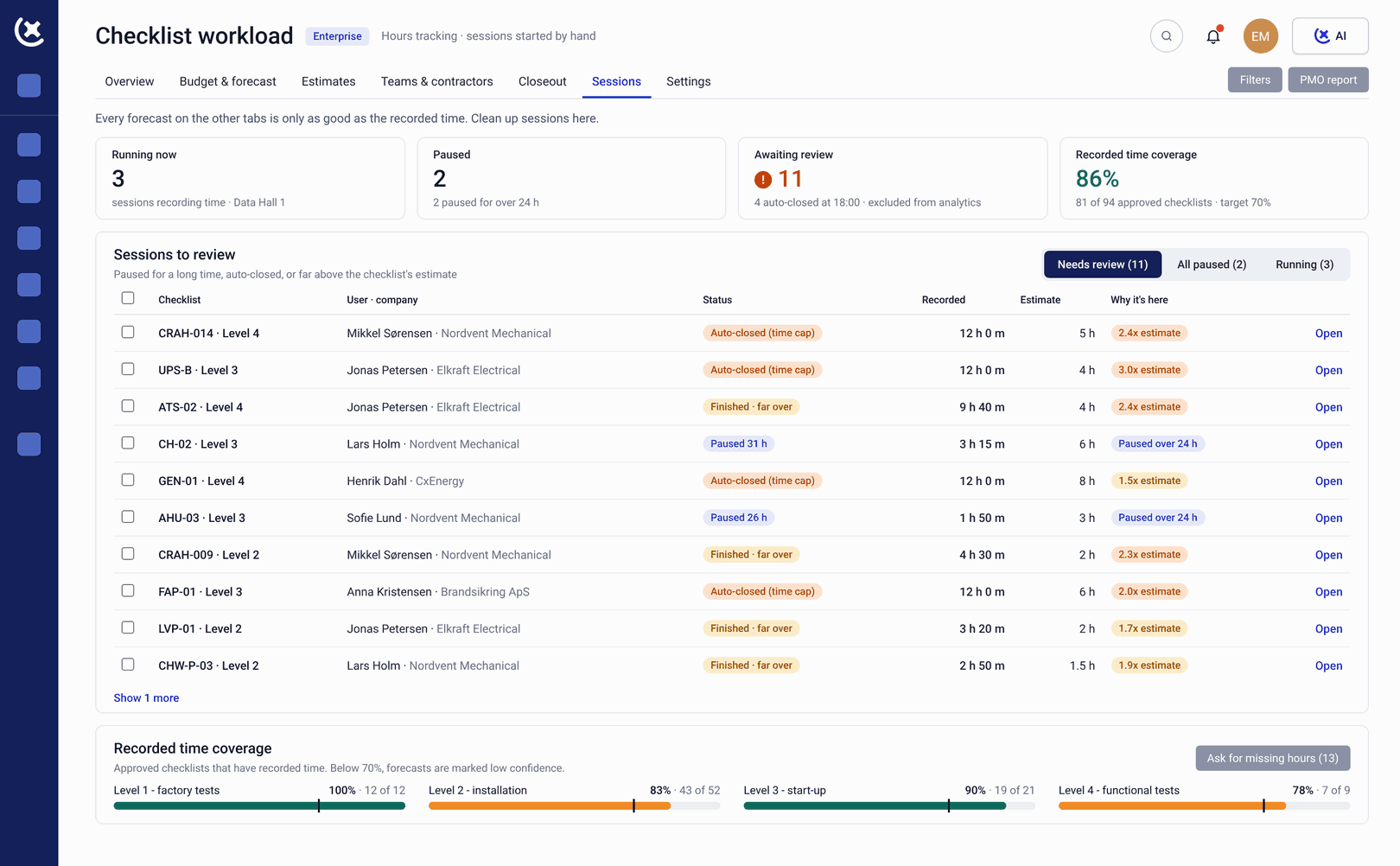
Drift shows up before it is a schedule conversation
Budgeted hours and logged hours sit side by side. A checklist type running over budget is visible the week it happens - not discovered when the closeout report is compiled.
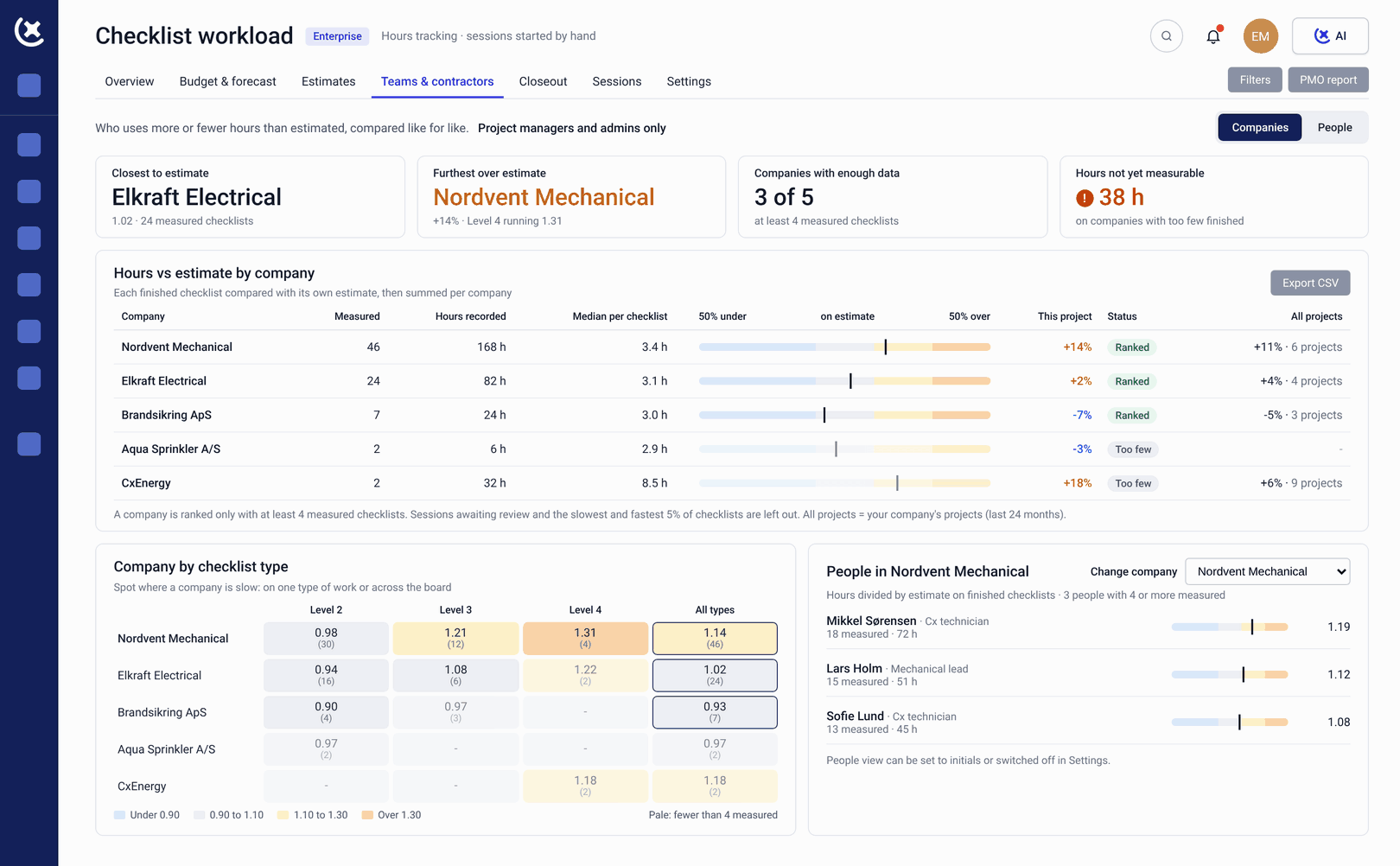
See where the remaining effort actually sits
Workload groups the same effort data by category, company, responsible person, or user group, so a Manager can answer "who still has hours left to burn" without building a spreadsheet to find out.
Benefits from budgeting effort at the checklist type
Resourcing questions get answered weeks out, not in the final sprint before handover.
No spreadsheet, no re-entry, no second system.
Set the Work Hours field once per checklist type and every checklist created from it carries the budget automatically. Nobody re-types an hour estimate per asset.
Variance is visible the week it happens.
Planned versus actual is tracked continuously, not reconstructed from memory at closeout. A checklist type drifting over budget is a this-week problem to solve, not a last-week surprise.
Capacity is answered before it is urgent.
Grouping workload by company, person, or user group tells a Manager where remaining effort sits - so reallocating people happens with weeks of runway instead of days.
Explore how Checklist Workload fits your commissioning programme
If effort estimates only exist in someone's head or an old tender spreadsheet, book a walkthrough. We will show you what live effort budgeting and capacity forecasting looks like in CxPlanner.
Book a demoRequest a walkthroughCommon questions about Checklist Workload
Where do I set expected hours for a checklist type?
Open the Asset module, go to Types: Assets, click the pencil icon on the checklist type row, expand Advanced, and enter a value in the Work Hours field. Save Changes applies it to every checklist created from that type.
What happens if I leave Work Hours blank?
Checklists created from that type simply will not show hours in Checklist Workload. There is no default value applied - the field has to be filled for that checklist type to appear in effort tracking.
Can I see workload grouped by company or person, not just checklist type?
Yes. Checklist Workload can be grouped by category, company, responsible person, or user group, so effort remaining can be reviewed from whichever angle a Manager needs.
Who can configure the Work Hours field?
Setting or editing Work Hours on a checklist type requires the project role Manager or Admin.
Does Checklist Workload replace the need for a separate resourcing spreadsheet?
That is the point of it. Once Work Hours is set per checklist type, planned and actual effort are tracked in CxPlanner directly, without a parallel spreadsheet to keep updated.